
Looking for the right LinkedIn banner size? 🤔 Here is the short answer. Use 1584 x 396 pixels for a personal profile and 1512 x 256 pixels for a company Page, in PNG or JPG.
Get those numbers wrong and LinkedIn crops your text, hides your logo behind your profile picture or turns your visual into a blurry mess. This guide gives you every LinkedIn banner size, the safe zone to respect, the difference between desktop and mobile, and a step-by-step method to design a banner that fits the first time. 🎯
LinkedIn Banner Size: Every Dimension at a Glance
The LinkedIn banner size depends on where your image goes. A personal profile, a LinkedIn company page and the Life tab of a Page each use their own format. Here are the official LinkedIn image specifications in one table. 📐
Where | Recommended size | Aspect ratio | Max file size | Formats |
|---|---|---|---|---|
Personal profile banner | 1584 x 396 px | 4:1 | 8 MB | PNG, JPG |
Company Page cover | 1512 x 256 px | About 6:1 | 3 MB | PNG, JPEG |
Page Life tab main image | 1128 x 376 px | 3:1 | 3 MB | PNG, JPEG |
Page logo | 400 x 400 px | 1:1 | 3 MB | PNG, JPEG |
Good to know, the LinkedIn cover photo size and the LinkedIn banner size are the same thing. Only the name changes. LinkedIn now calls it a "cover image" in its help center, while most people search for LinkedIn banner dimensions, the LinkedIn header size or the background photo size. 🤓
LinkedIn Profile Banner Size: 1584 x 396 Pixels
For a personal profile, the LinkedIn banner size recommended by LinkedIn Help is 1584 pixels wide by 396 pixels tall, with a file under 8 MB. That gives a 4:1 aspect ratio, a long horizontal strip that sits right above your LinkedIn profile picture, your name and your headline. 🖼️
Upload a smaller image and LinkedIn stretches it, which is the main cause of a blurry banner. Upload a different ratio and LinkedIn asks you to crop it, often right through the part you cared about. Start from a canvas of exactly 1584 x 396 pixels and you avoid both problems.
At Waalaxy, the whole team uses the same graphic charter and the colors of the products on their profile banners. Every profile looks like part of the same crew.
The Safe Zone: What Your Profile Picture Hides
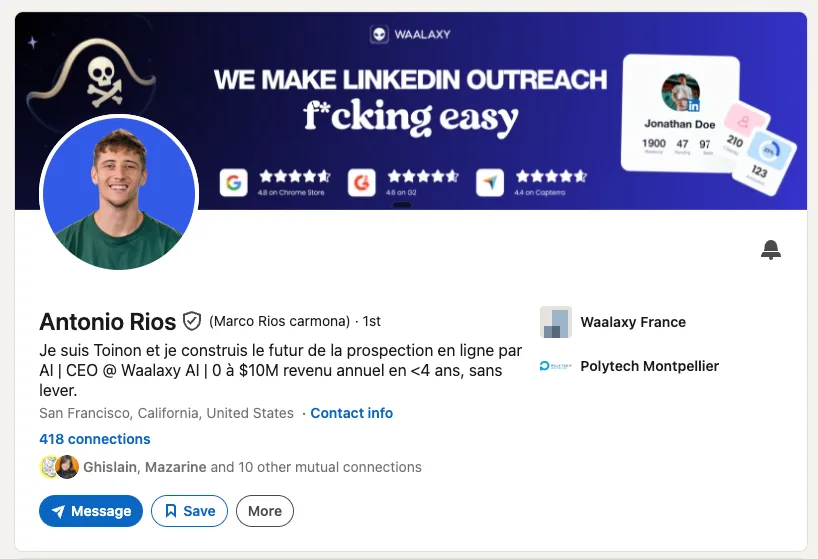
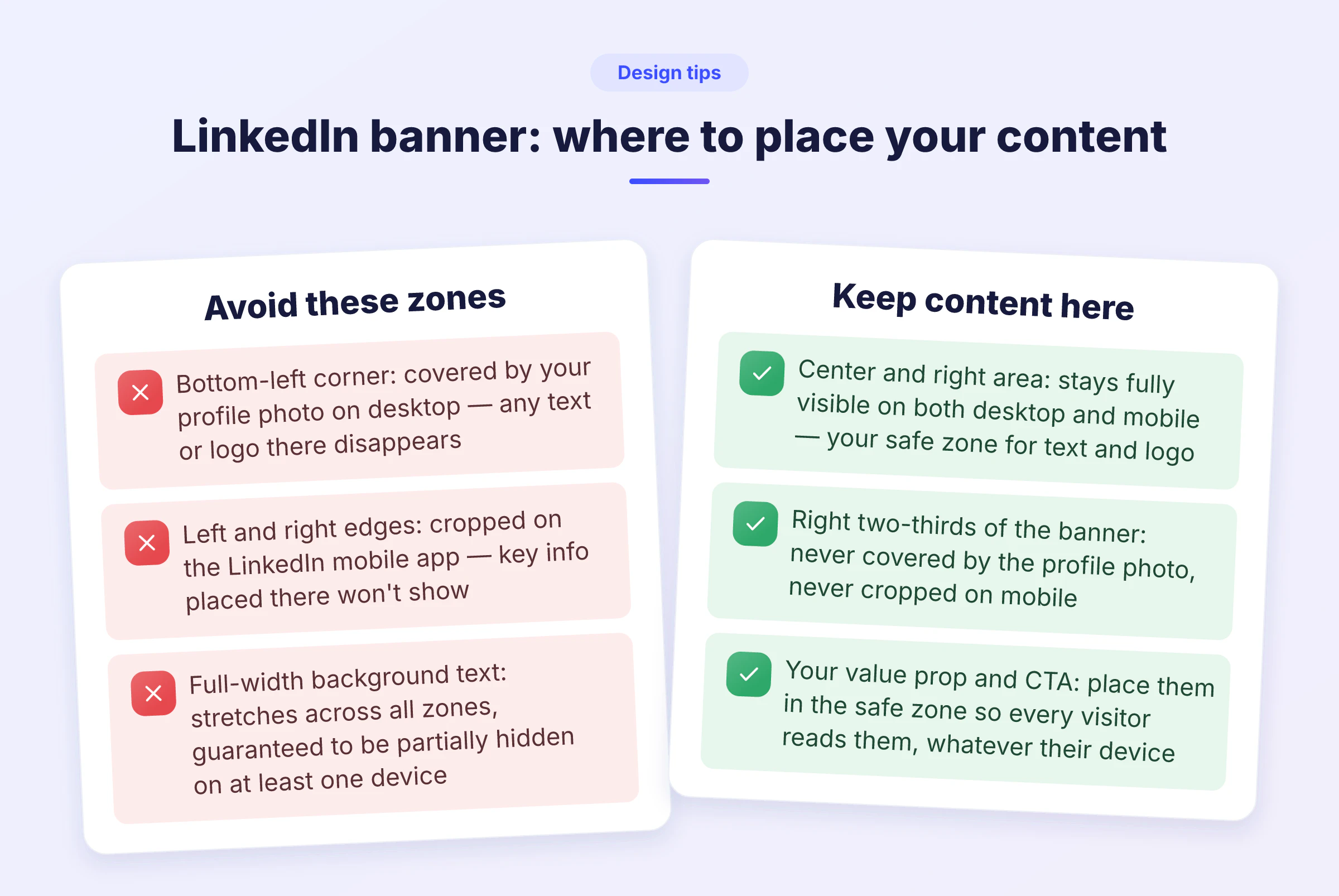
On desktop, your profile picture overlaps the bottom-left corner of the banner. Anything you place there, like a logo, a tagline or a URL, disappears behind your face. Keep your text and key visuals in the center and on the right side of the banner. Leave a margin on every edge too, since the display changes with the browser window and the screen resolution.
Once the safe zone is clear, check how the banner behaves on a phone. Many of your visitors will open your profile from the LinkedIn mobile app, not from a computer.
LinkedIn Banner on Desktop vs Mobile
The same file does not display the same way on every screen. Here is what changes.
On desktop, the full width of the banner shows, with your profile picture on the bottom left.
On the mobile app, the sides get trimmed and the profile picture moves, so edge content gets cut.
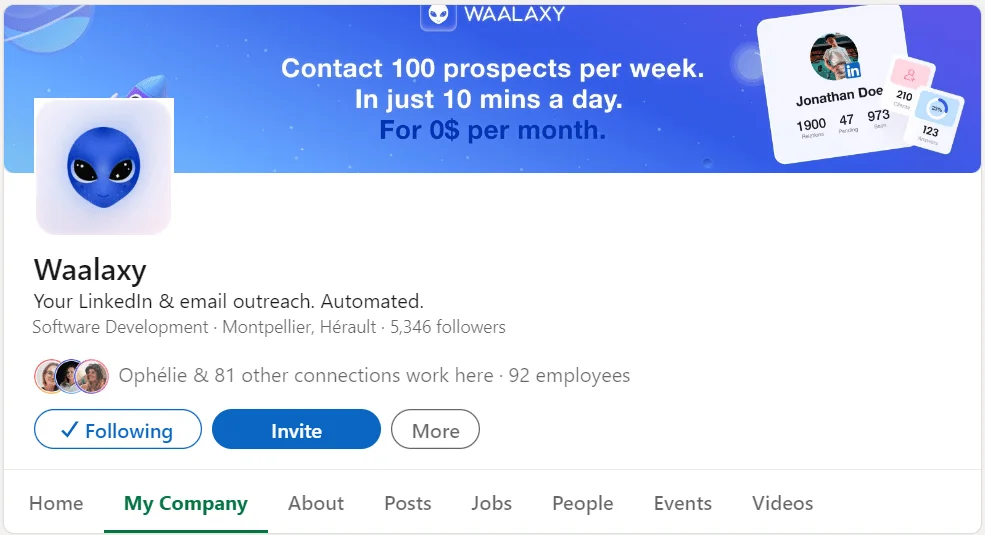
On a company Page, the logo sits on the bottom left of the cover, which shifts the safe zone for company banners.
The fix takes ten seconds. Open your profile on your phone right after uploading the banner. 📱 If a word is cut, move it toward the center and upload the image again.
LinkedIn Company Page Banner Size: 1512 x 256 Pixels
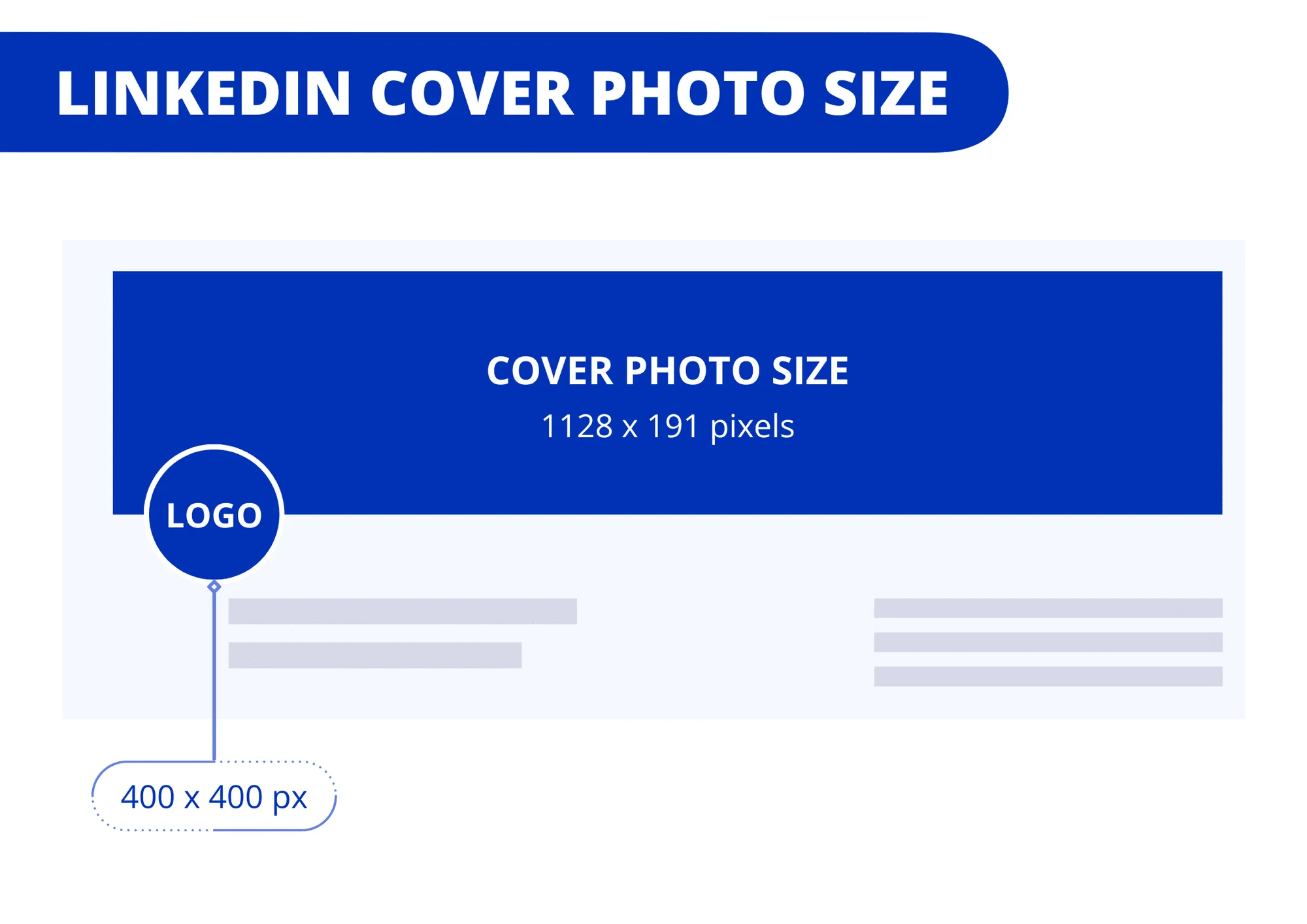
For a company Page, the LinkedIn company page banner size listed in LinkedIn's image specifications for Pages is 1512 x 256 pixels, in PNG or JPEG, with a 3 MB maximum. The same help page gives the size of the Life tab image (1128 x 376 pixels) and of the Page logo (400 x 400 pixels).
A clean cover gives your Page a polished look and makes visitors more likely to click "Follow". 🥰 It is also the first visual a prospect sees when they check your company after a message from one of your sales reps.
1128 x 191 or 4200 x 700? Why Guides Give Different Numbers
Search for the LinkedIn business page banner size and you will find three different answers for the LinkedIn banner size of a Page. 1128 x 191 pixels is the old display size of the Page cover. 4200 x 700 pixels is an older upload recommendation that many guides still repeat. The size to use today is the one in LinkedIn's help center, 1512 x 256 pixels.
How to Create a LinkedIn Banner With the Right Size
No need to be a designer to make a banner that fits. Plenty of tools open a canvas already set to the right LinkedIn background image format. The most widely used are these. 🤓
Photoshop.
Illustrator.
Figma.
Canva.
Canva stays the favorite tool of the Waalaxy team for all its visual content. It is easy to use when you are not a graphic designer, and its LinkedIn banner template opens directly at 1584 x 396 pixels.
Make Your LinkedIn Banner in Canva in 8 Steps
Here are the 8 steps the team follows to design a banner at the right LinkedIn banner size.
Go to Canva and click "Create a design".
Pick the "LinkedIn Banner" format, which opens a canvas of 1584 x 396 pixels.
Drag and drop your images and visuals.
Add a short text that follows your graphic charter.
Adjust the layout and the colors, keep your text out of the bottom-left corner, then download the file.
Go to your LinkedIn profile.
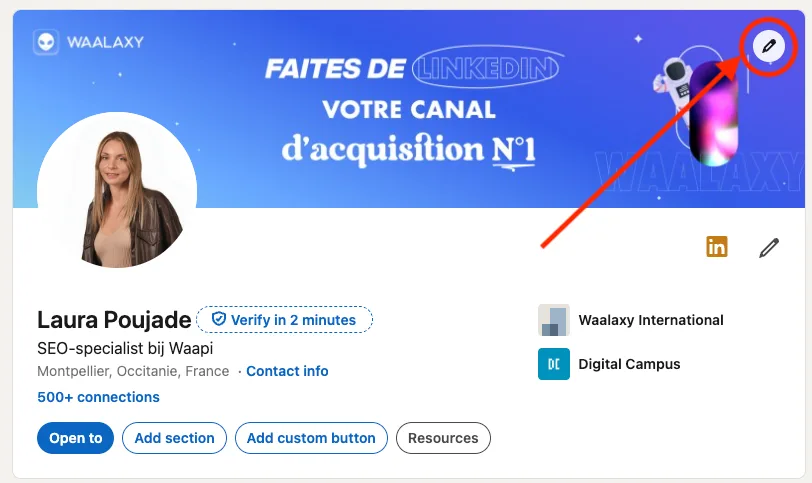
Click the pencil icon on your background image.
Upload the image you just created, adjust it and save.
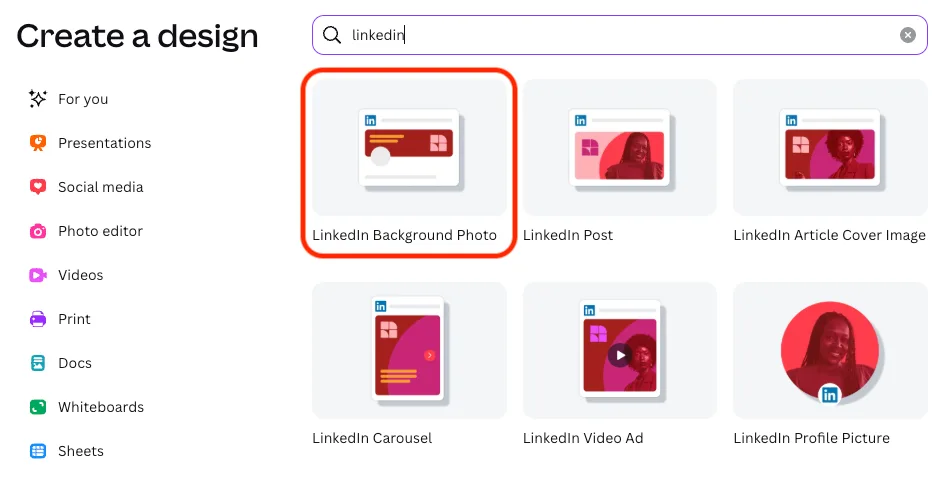
Want a head start? These free LinkedIn banner templates give you ready-made designs to adapt in a few clicks, so you skip the blank page. 🎨
LinkedIn Banner Best Practices (With Examples)
Respecting the LinkedIn banner size is a start. A banner that makes a prospect want to read your profile is better. LinkedIn is the biggest professional network, and the banner is the largest visual on your profile. It works as free advertising for your personal branding on LinkedIn.
3 Rules for a Banner That Works
When you design your LinkedIn banner, keep these 3 rules in mind.
Keep the text short. One line with your promise or your offer reads better than a paragraph, especially on mobile.
Pick a color palette that matches the message you send to your LinkedIn audience, instead of random colors.
Use high-quality images. Free photo banks like Pixabay or Freepik save time if you cannot do a professional photoshoot.
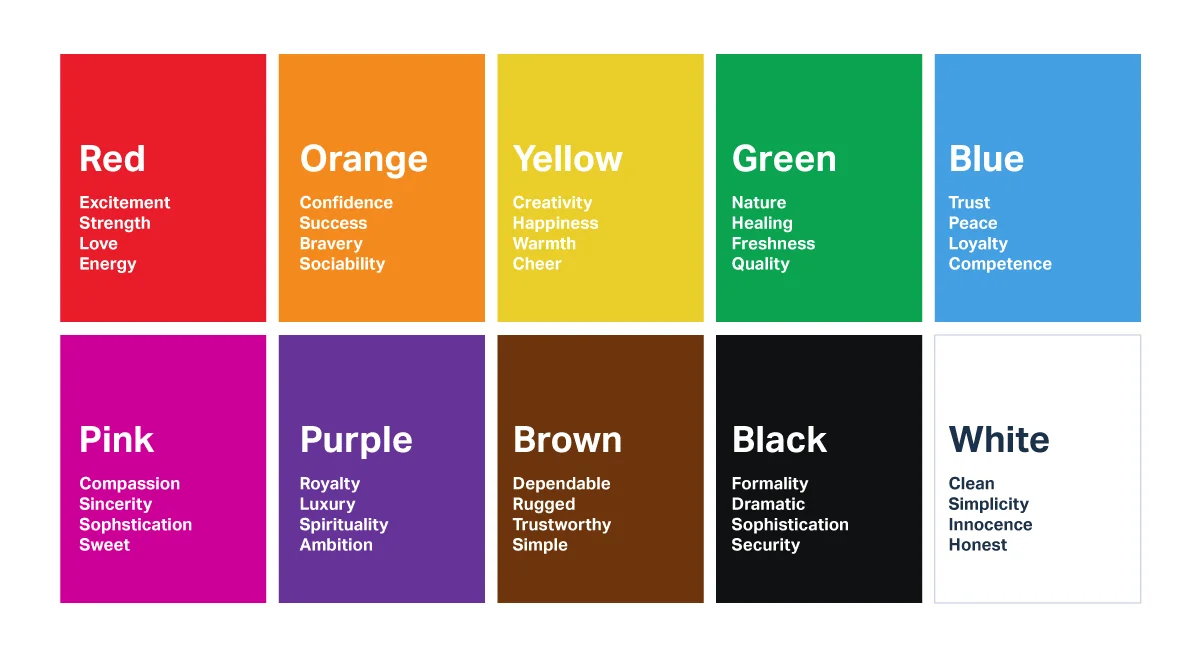
Colors also send a message. The chart above shows how marketers link each color to an emotion. Use it to pick the tone of your banner, then stick to the colors of your brand.
LinkedIn Banner Examples to Learn From
👉 First, EY. The firm takes recruiting seriously, and it shows right away on its banner. It targets senior profiles with solid professional experience, a good reminder of how to use LinkedIn for recruiting.
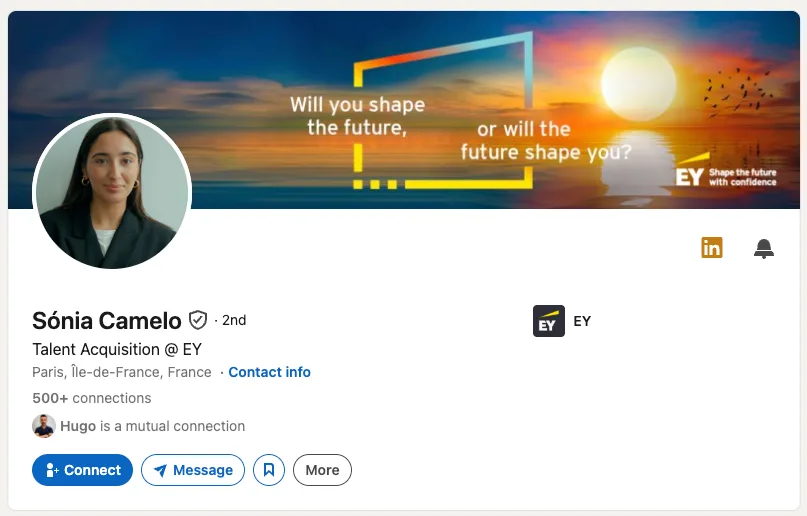
The banner is sober and mostly uses yellow and black, the colors of the brand. It reflects the values and the target of the company in one glance.
👉 Second, a graphic designer and illustrator who is Open to Work on LinkedIn. She uses her cover photo as a mini portfolio that shows her style and her kind of work.
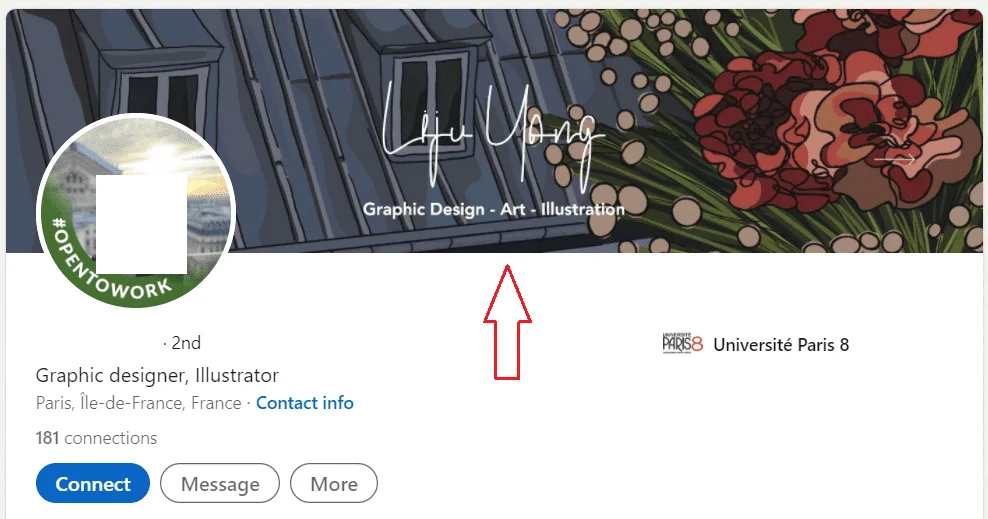
Both work for the same reason. The banner tells visitors who you help and what you do before they read a single line of your profile. If you also need a fresh portrait to match it, have a look at these AI LinkedIn photo generators.
Your Banner, Headline and Summary Work Together
Your banner sits right above your LinkedIn headline. When a prospect gets your invitation or reads your message, they check your profile, and those two elements decide whether they keep reading. Make them tell the same story. Need ideas for the headline? Generate a few below. 👇
Round it off with a clear summary for LinkedIn, and your profile is ready to welcome prospects. That is where Waalaxy comes in. It sends your invitations and your LinkedIn prospecting messages automatically from the cloud, so your new banner gets seen while you focus on the replies.
How to Change Your LinkedIn Banner
Once your image matches the LinkedIn banner size, changing it takes less than a minute, on a computer or in the LinkedIn mobile app. 📲
Go to your LinkedIn profile and click the pencil icon at the top of your banner.
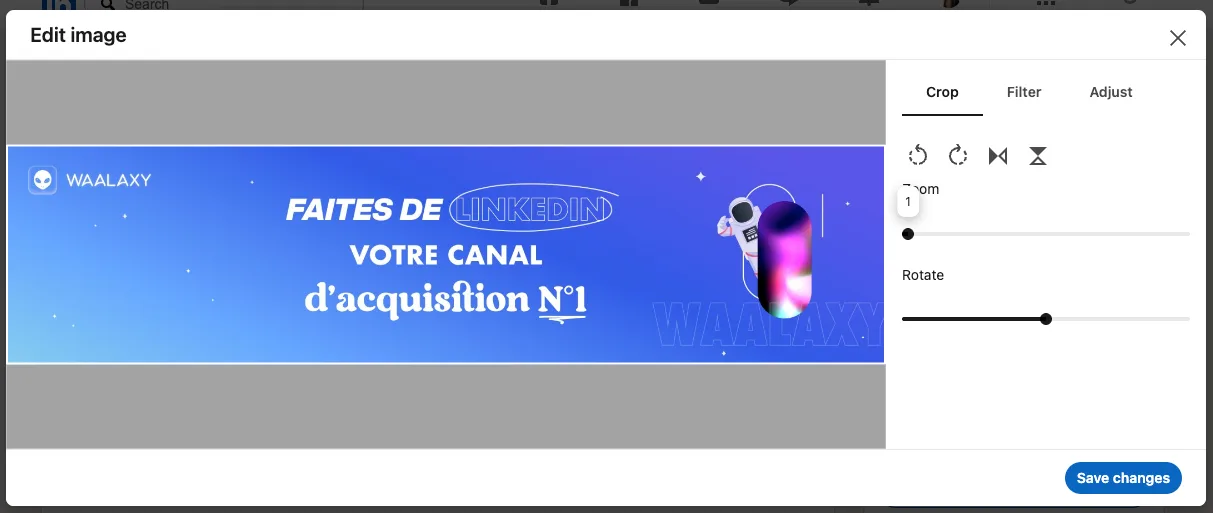
Click "Edit photo" and upload the image you created.
Adjust the position if needed, then click "Apply" to update the cover image.
LinkedIn shows a preview before saving. Use it to check that nothing important sits under your profile picture, then confirm the changes. ✅
Common LinkedIn Banner Mistakes
Most banner problems come from the same few mistakes. Check yours against this list.
Uploading an image below the LinkedIn banner size of 1584 x 396 pixels, which LinkedIn stretches and blurs.
Using a square or vertical photo, which forces a crop you do not control.
Placing text or a logo in the bottom-left corner, right under your profile picture.
Writing a full paragraph that nobody can read on a phone.
Keeping the default blue background, which tells visitors you have not touched your profile in a while.
Fix these five points and your profile instantly looks more professional. The banner is one step, and you can go further to optimize your LinkedIn profile from top to bottom.
LinkedIn Banner Size: Key Takeaways
The right LinkedIn banner size is 1584 x 396 pixels for your profile and 1512 x 256 pixels for your company Page. Keep your text in the center, away from your profile picture, check the result on mobile, and export in PNG or JPG under the size limit. That is all it takes for a banner that looks sharp on every screen. ✨
Your banner is the first thing prospects see when they land on your profile. Now that yours is ready, start LinkedIn prospecting with a profile that makes people want to accept your invitation. New to the tool? This walkthrough to get started on Waalaxy shows you the first steps.
FAQ: LinkedIn Banner Size
The ideal LinkedIn banner size for a personal profile is 1584 x 396 pixels, which is the size LinkedIn recommends in its help center. Keep the file under 8 MB and save it as PNG or JPG. For a company Page, the recommended size is different, 1512 x 256 pixels. Starting from the exact dimensions avoids any crop or stretch when you upload the image.
LinkedIn recommends 1512 x 256 pixels for a company Page cover, in PNG or JPEG, with a maximum of 3 MB. Older guides still mention 1128 x 191 or 4200 x 700 pixels, but those numbers come from previous specs. Remember that the Page logo covers the bottom-left corner of the cover, so keep your text in the center. If you manage LinkedIn Showcase Pages, give each of them a cover that matches its audience.
A blurry banner almost always comes from an image that is too small, which LinkedIn stretches to fill the space. Here is how to fix it.
Export your design at 1584 x 396 pixels, or larger with the same 4:1 ratio.
Use PNG for text and logos, since JPG compression can soften the edges.
Keep the file under 8 MB so LinkedIn does not reject it.
The same logic applies when you add an image in a LinkedIn post. A sharp source file gives a sharp result.
The LinkedIn mobile app shows a narrower part of your banner than the desktop version. The left and right edges get trimmed, and the profile picture moves. So even at the right LinkedIn banner size, text placed near the edges disappears on a phone. Keep your important content in the center of the image and check the result on your own phone after each upload.
A LinkedIn profile banner has a 4:1 aspect ratio, since 1584 divided by 396 equals 4. Any image with that ratio fits without a crop, for example 3168 x 792 pixels if you want extra sharpness. A company Page cover is much flatter, about 6:1 with 1512 x 256 pixels. Using the wrong ratio forces LinkedIn to crop your image, so set it before you start designing.
Yes. Banner, cover photo, cover image, background photo and header image all describe the same horizontal image at the top of a profile. LinkedIn now uses the term "cover image" in its help center. Whatever the name, the size stays 1584 x 396 pixels for a profile and 1512 x 256 pixels for a Page.
There is no fixed rule, but update your banner each time your message changes. A few good moments to do it:
You launch a new offer, a product or a new job.
You promote one of your LinkedIn events.
Your company is hiring on LinkedIn and you want candidates to know it.
Between those moments, a banner that stays consistent with your brand works fine for months. Keep the same LinkedIn banner size each time, only the message changes.